
รายละเอียดจากผู้ผลิต (English)
Sticky Password Premium Subscription Code
อื่นๆ
Global — ใช้ได้ทั่วโลก
โปรแกรม & Software
คำเตือน: โปรดอ่านรายละเอียดก่อนสั่งซื้อ หากซื้อแล้วไม่สามารถยกเลิกหรือขอเงินคืนได้
วิธีเปิดใช้งานคีย์ (Activation)
Download the app from https://www.stickypassword.com/download. Once the download is complete, open the file and then in the pop-up window, drag the Sticky Password icon to the application folder to begin to install Double click the applications folder and launch Sticky Password On the welcome page, click "Next" begin the installation. You will be shown a series of slides regarding the software. Please read the content and click "Next" until you see the "Continue" button You will then be asked to either login to your Sticky Password account or create one if you do not have one. To create a new account, click "Create a new account" Enter in a valid email address for your account email. Then choose a master password Click "Create my Account" You will be asked to confirm your master password. Enter your master password and then click "I know, continue" You will be asked if you'd like to sync to the Sticky Password Cloud servers. If you wish to decline, click the toggle button and then click "Continue". If you wish to sync, click "Continue" You will now need to click "Add Now" to connect your browser. Your browser may need to restart in order to continue redeeming your license.
NOTE:
your browser will open with a set of instructions labeled "Enable Sticky Password in..." Please follow the instructions given on that screen. Back in the "Sticky Password" application, you will now see an "All Set" page. Click the "I have a license key" at the bottom of the page. Enter your license key into the indicated field and then click "Confirm."
NOTE:
You cannot copy and paste the key. The key is to be entered manually. Please make sure you are careful to enter key accurately in order to redeem successfully. License key is case sensitive and you must include dashes when promoted Click "Launch Sticky Password!" Restart your internet browser
NOTE:
your browser will open with a set of instructions labeled "Enable Sticky Password in..." Please follow the instructions given on that screen. Back in the "Sticky Password" application, you will now see an "All Set" page. Click the "I have a license key" at the bottom of the page. Enter your license key into the indicated field and then click "Confirm."
NOTE:
You cannot copy and paste the key. The key is to be entered manually. Please make sure you are careful to enter key accurately in order to redeem successfully. License key is case sensitive and you must include dashes when promoted Click "Launch Sticky Password!" Restart your internet browser
ข้อมูลสินค้า
| แพลตฟอร์ม | Other |
| โซนใช้งาน | GLOBAL — ใช้ได้ทั่วโลก |
| ภาษาที่รองรับ | English |
| การจัดส่ง | รับคีย์อัตโนมัติบนเว็บทันทีหลังชำระเงิน (ปกติไม่เกิน 1-2 นาที) |
สินค้าใกล้เคียง
ดูทั้งหมด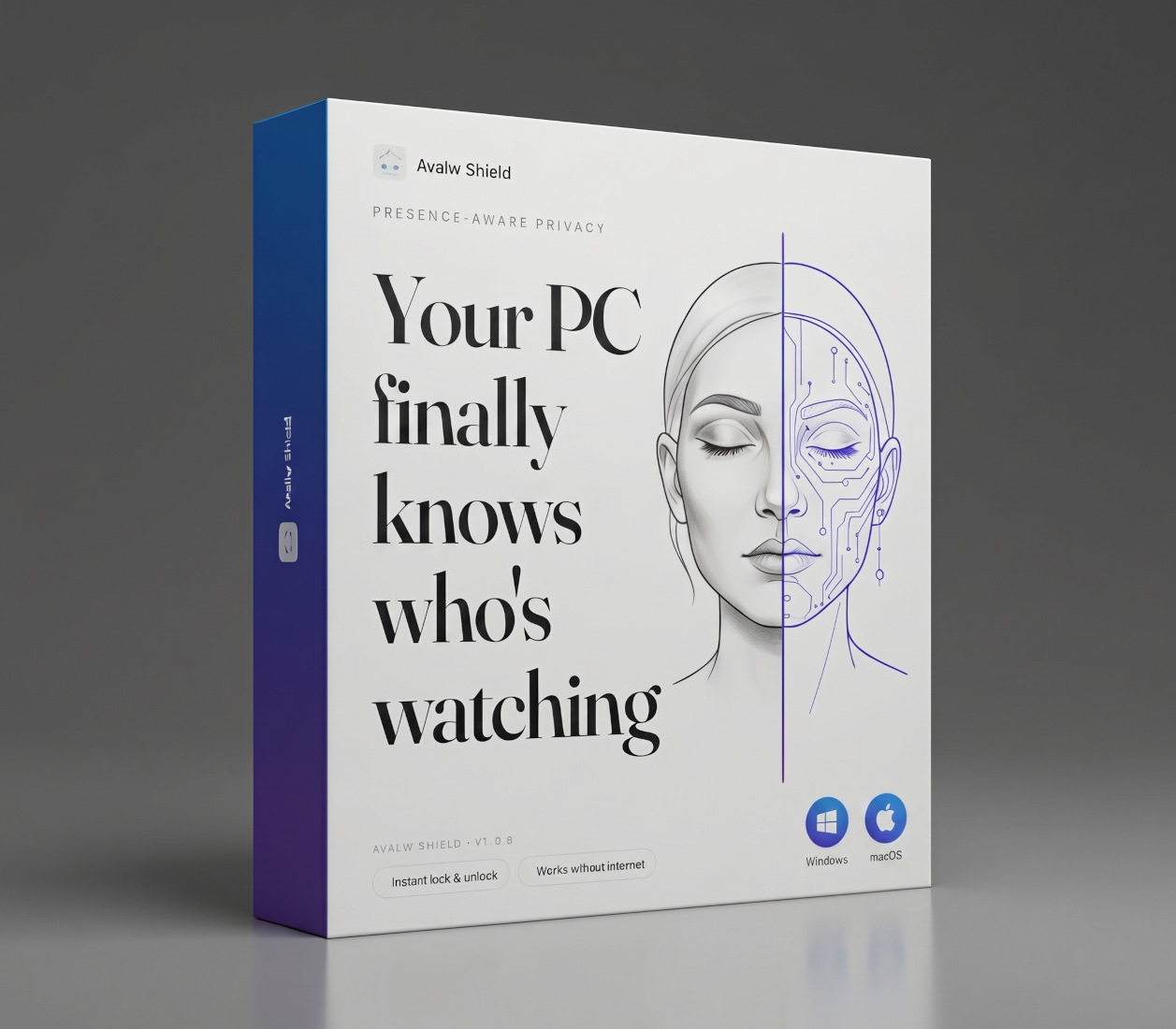
Avalw Shield CD Key
฿4,204 เหลือ 999+

Hunter Disk Cleaner Pro Licence Key (1 Year / 1 PC)
฿94 เหลือ 999+

PDFChef by Movavi Key (Lifetime / 1 PC)
฿321 เหลือ 999+

Luminar Neo Lite License Activation Key
฿935 เหลือ 999+

Skylum Luminar NEO Key
฿1,402 เหลือ 999+
Luminar AI License Activation Key
฿1,075 เหลือ 999+
ศูนย์บริการที่คุ้มค่า TC-TERMGAME
ความปลอดภัย
รับประกันความปลอดภัย 100%
บริการรวดเร็ว
รับสินค้าทันทีหลังจากการซื้อ
คุ้มค่าราคาถูก
ราคาถูกและพร้อมโปรโมชั่นราคาประหยัด
บริการตลอดเวลา
เปิดให้บริการตลอด 24 ชั่วโมง